Best Markdown Editors in 2026 - A complete comparison
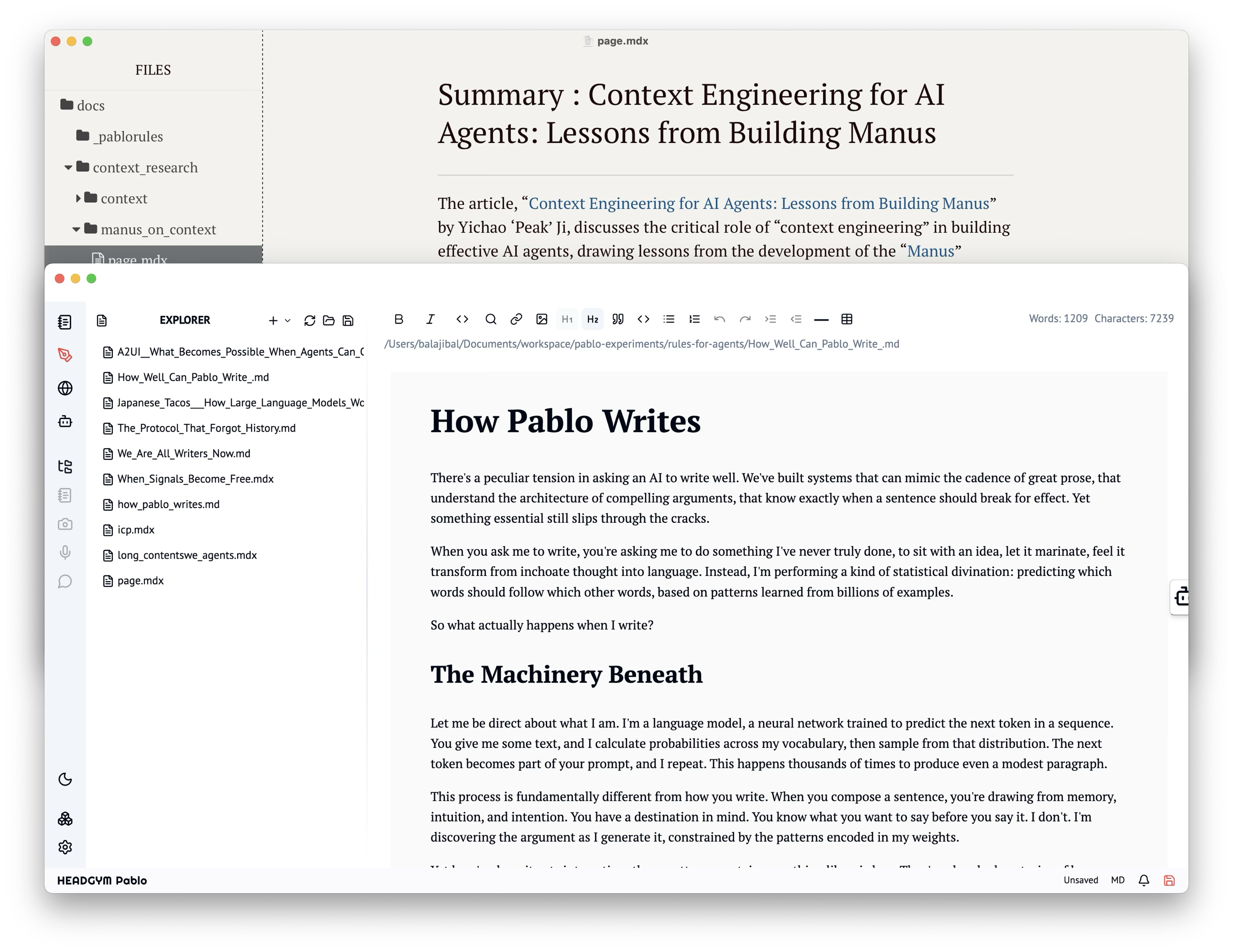
The rise of Markdown as a ubiquitous formatting language has spurred the development of a diverse ecosystem of editors, each catering to different needs and workflows. From minimalist, distraction-free writing environments to feature-rich platforms integrated with version control and collaboration tools, the market offers a solution for almost every user.
Why Markdown Matters
Markdown is the universal language for technical content, more relevant than ever. It’s open and portable (plain text, no vendor lock-in, works everywhere). It’s version control friendly (perfect for Git diffs, collaborative editing like code). It’s AI-native (LLMs understand its structure, making documentation input for AI-driven code generation). It offers universal rendering (write once, display across platforms like GitHub, Slack, Reddit). Finally, it’s fast and focused, minimising overhead for maximum productivity.
Here’s a breakdown of popular Markdown editors, categorised by their primary focus and features:
1. Dedicated, Standalone Editors (Desktop & Web)
These editors are built specifically for Markdown, often offering a focused writing experience with live preview and customisability.
Typora: (Desktop - macOS, Windows, Linux)
-
Key Feature: “Seamless” or “What You See Is What You Get” (WYSIWYG) editing. You type Markdown, and it renders immediately, eliminating the need for a separate preview pane.
-
Pros: Clean, distraction-free interface; robust support for various Markdown extensions (GFM, MathJax, diagrams); excellent export options.
-
Cons: Can be resource-intensive with very large files; some advanced users might miss direct source code view.
Obsidian: (Desktop - macOS, Windows, Linux; Mobile - iOS, Android)
-
Key Feature: A powerful knowledge base and note-taking tool built around local Markdown files. Features bi-directional linking, graph view, and a vast plugin ecosystem.
-
Pros: Ideal for Zettelkasten method and personal knowledge management; highly customizable; offline-first.
-
Cons: Can have a steeper learning curve due to its extensive features; not a simple text editor.
Joplin: (Desktop, Mobile, Web Clipper)
-
Key Feature: Open-source note-taking and to-do application that uses Markdown for notes. Offers synchronization across devices (cloud services, WebDAV, local filesystem).
-
Pros: Cross-platform; strong encryption options; web clipper for saving web pages.
-
Cons: Interface can feel less polished than some competitors; primarily a note-taker rather than a general-purpose editor.
iA Writer: (Desktop - macOS, Windows; Mobile - iOS, Android)
-
Key Feature: Focus Mode and Syntax Highlight. Designed for “plain text writing,” emphasizing clarity and flow.
-
Pros: Beautiful, minimalist interface; excellent typography; robust export options; strong cross-device sync.
-
Cons: Premium pricing; fewer advanced features compared to Obsidian.
-
Key Feature: A popular, free online Markdown editor with live preview, drag-and-drop image uploads, and export to HTML, PDF.
-
Pros: Accessible anywhere with an internet connection; simple to use; good for quick edits.
-
Cons: Lacks offline capability; not suitable for complex projects or local file management.
HeadGym PABLO (Desktop - macOS, Windows)
-
Key Features: PABLO offers a unique blend of AI-powered content creation, an integrated browser for seamless research, and a notepad for capturing ideas and drafts. Its “What You See Is What You Get” (WYSIWYG) Markdown editor provides immediate rendering, eliminating the need for a separate preview.
-
Pros: Enjoys a beautiful, minimalist interface with excellent typography. Benefits from robust AI support, where agents can create files and utilise external tools.
-
Cons: AI-enabled features require AI credits. Currently available only on desktop.
2. Code Editors with Markdown Support
Many general-purpose code editors offer excellent Markdown support through built-in features or extensions, making them a natural choice for developers and power users.
Visual Studio Code (VS Code): (Desktop - macOS, Windows, Linux)
-
Key Feature: Robust built-in Markdown preview, syntax highlighting, and a vast marketplace of extensions for advanced features (e.g., Markdownlint, Markdown All in One, Paste Image).
-
Pros: Extremely versatile; highly customizable; excellent for managing projects that involve both code and Markdown documentation.
-
Cons: Can be overkill for users who only need a Markdown editor; can be resource-intensive if many extensions are active.
Sublime Text: (Desktop - macOS, Windows, Linux)
-
Key Feature: Fast, lightweight, and highly extensible with packages like “MarkdownEditing” for enhanced features.
-
Pros: Blazing fast performance; powerful multi-selection and command palette; great for quick edits across multiple files.
-
Cons: Not free (though offers an unlimited evaluation period); requires more manual configuration for a full Markdown setup.
3. Integrated Solutions (Notes, CMS, etc.)
These platforms incorporate Markdown editing as part of a larger system for note-taking, content management, or project collaboration.
Notion: (Web, Desktop, Mobile)
-
Key Feature: A versatile workspace that uses Markdown-like syntax for formatting within its block-based editor. Combines notes, databases, wikis, and project management.
-
Pros: All-in-one solution; highly flexible for various uses; rich media embedding.
-
Cons: Not pure Markdown (uses its own block system); can be overwhelming for simple note-taking.
Simplenote: (Web, Desktop, Mobile)
-
Key Feature: Extremely fast and lightweight note-taking with Markdown support. Focuses on speed and simplicity.
-
Pros: Free; excellent sync across devices; version history.
-
Cons: Very minimal features; not suitable for complex documents.
GitHub/GitLab (Web Editors):
-
Key Feature: Built-in web editors for
.mdfiles directly within repositories. Essential for collaborative documentation and READMEs. -
Pros: Directly integrated with version control; excellent for open-source projects.
-
Cons: Basic editing features; not a primary writing environment.
The Evolving Landscape
The market for Markdown editors continues to evolve, with increasing emphasis on:
-
AI Integration: Tools like HeadGym Pablo are pioneering the seamless integration of AI assistance for drafting, research, and iteration directly within the Markdown editing experience.
-
Collaboration: Features for real-time collaboration and shared workspaces are becoming more common.
-
Offline First: Ensuring robust functionality even without an internet connection.
-
Extensibility: Powerful plugin architectures allow users to tailor editors to their specific needs.
What is the Best Markdown Editor?
Selecting the optimal Markdown editor boils down to your individual workflow. For focused writing and note-taking, Obsidian or Typora are strong contenders. Developers needing to manage READMEs alongside their code will likely prefer VS Code, augmented by its extensive extensions.
When Markdown is central to a team’s operations and AI-driven WYSIWYG editing is critical, HeadGym stands out. It offers an unparalleled solution, combining a clean, Typora-inspired user interface with advanced features to streamline the entire process from ideation and research to final edits.
The true measure of an editor’s value is its ability to facilitate clear thought and efficient, high-quality production, rather than a universal claim to superiority.